
In part two of my guide to making your own airbrush masks with a Cricut cutter, I explain how to configure the settings in Cricut Design Space (CDS) and your vector design app to get accurate cuts with the correct dimensions.
Now, you may not have any other design apps and you’re wondering whether you need one. You don’t. But using a proper vector design app will make all but the most basic of designs easier, which means less effort in the long run.
Get your ducks in a row
Getting the expected output size is clearly pretty important, but a few Cricut newbies will fall at this hurdle. It’s actually quite simple, once you know the fundamentals, because it’s mostly influenced by just two parameters: the measurement unit and DPI.
When I’ve seen people complain that their cut was the wrong size, it has often been down to an oversight with one of these parameters at some point in their workflow.
DPI matters
Dots per inch is a complex subject, but in this context there’s no need to know anything about it. You just need to know that CDS assumes that your imported images have 72dpi for cutting or 144dpi for the Print, Then Cut function. So for paint masks, we use 72dpi from the beginning.
Measurement units
Your choice of unit needs to be consistent throughout your workflow. I measure in millimetres, so that’s what I use when setting up my apps and it’s what I’ll use in this tutorial.
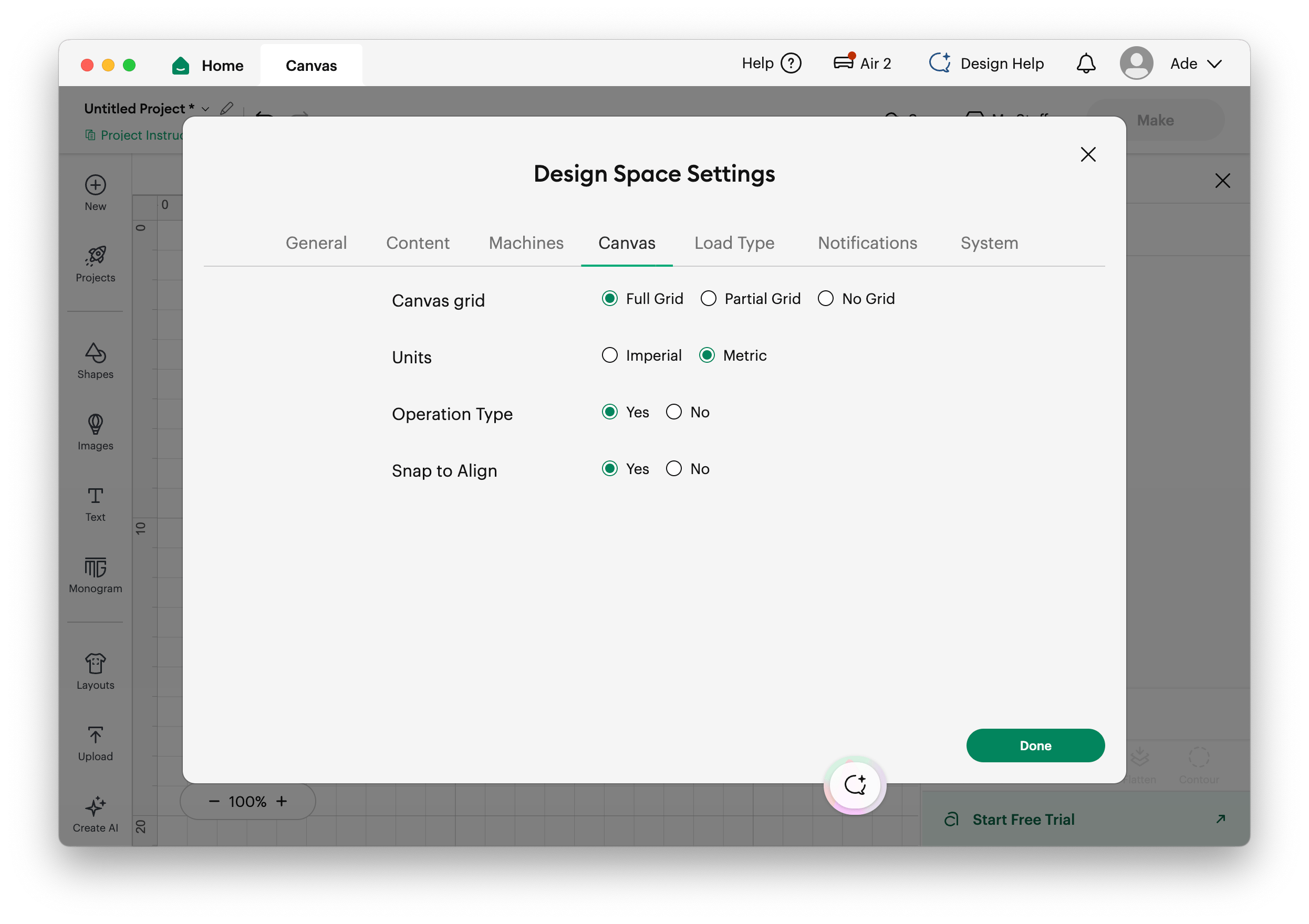
All good design apps provide the ability to work in whichever type of unit your output requires — screen/print, imperial, and metric values — and even set the number of decimal places. CDS has a far more basic choice of either metric or imperial units, as you can see here.
Creating a document preset
If your design app offers custom document presets, start by creating one for your Cricut designs.
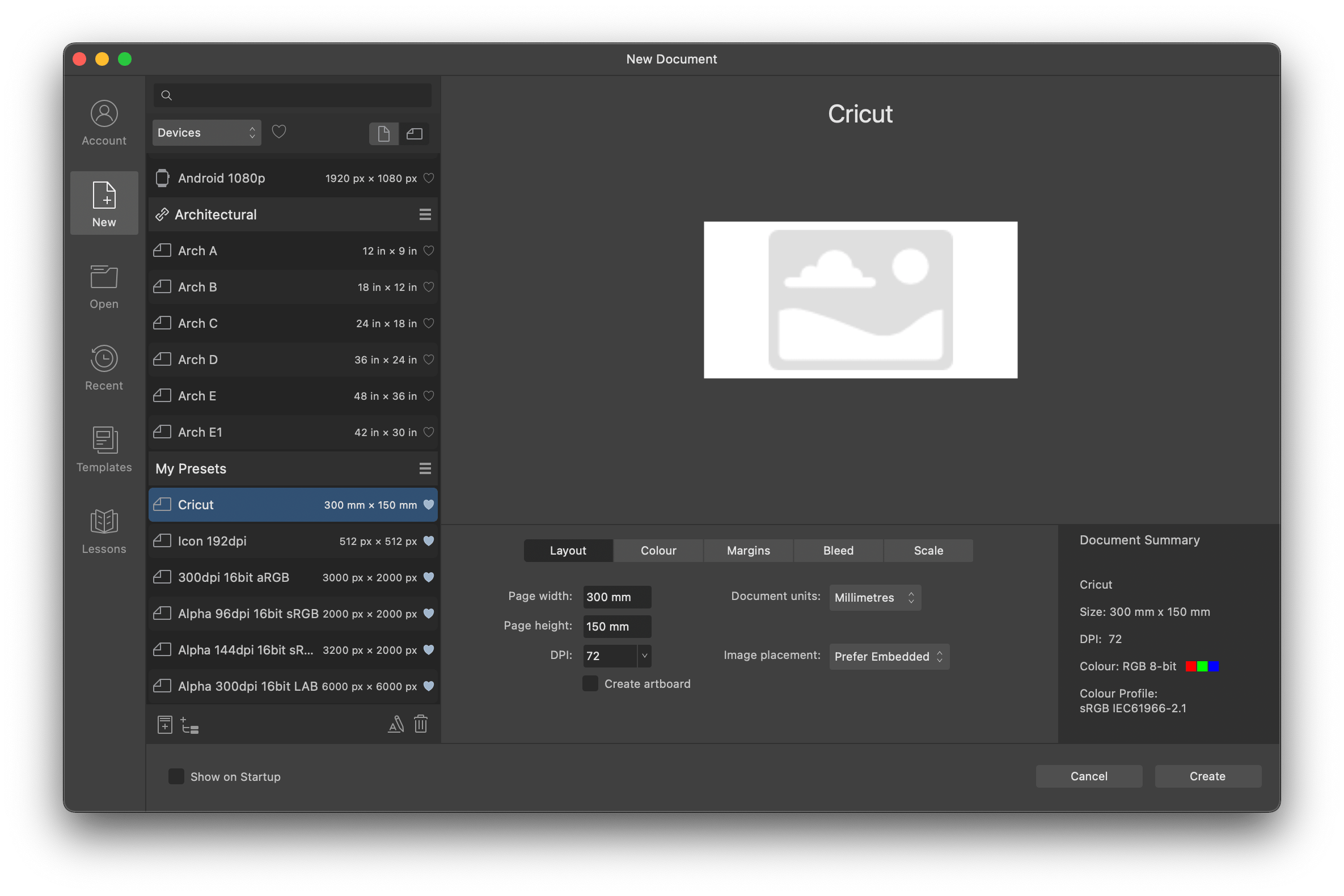
In the next screenshot, you can see my document preset in Affinity. It’s sized to match the width of the cutting area — just so that I can’t accidentally go beyond it with a large design. The working units are set to millimetres and the DPI is at 72. The other parameters can be left at their defaults because they don’t matter to us.
Exporting the document
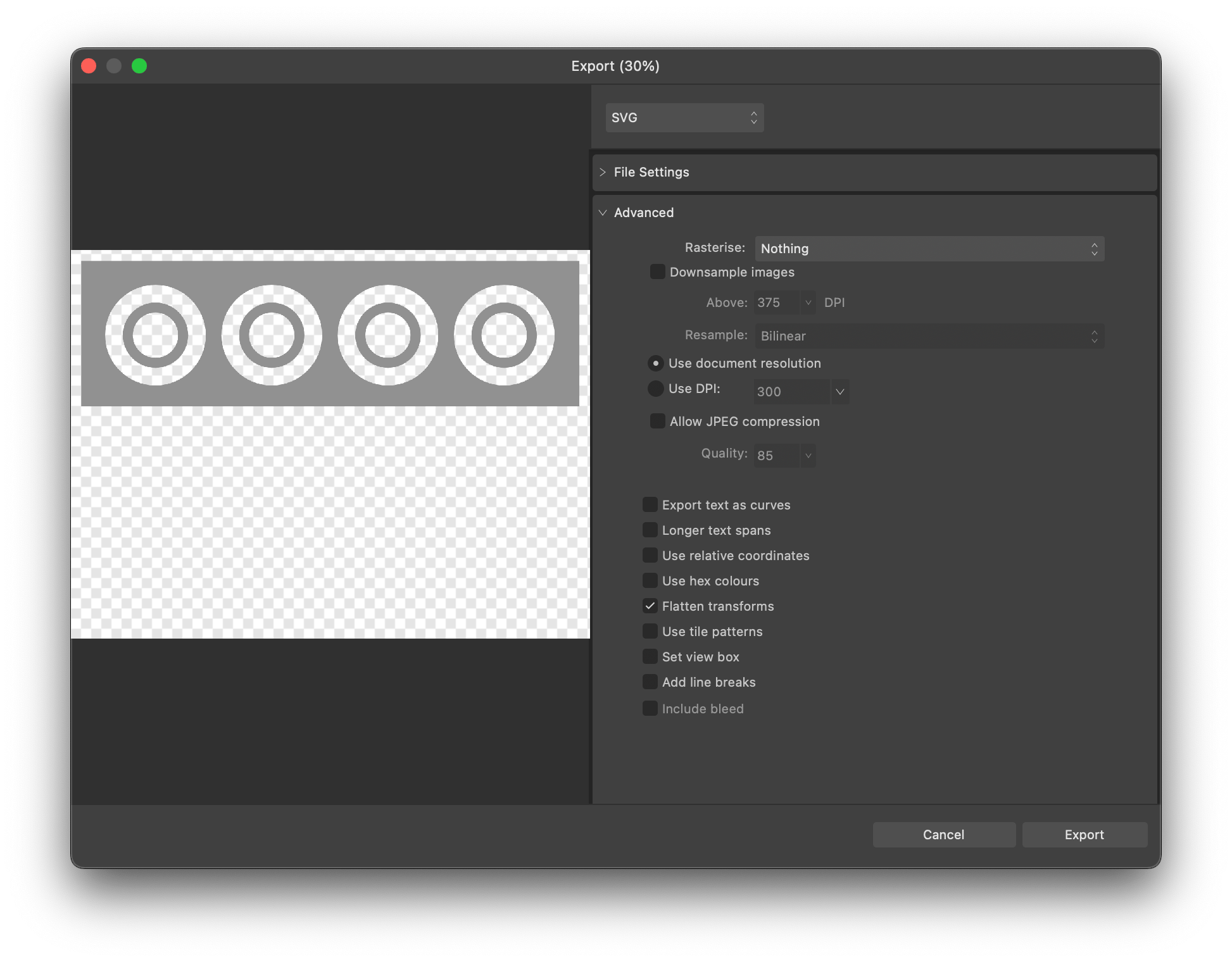
If you have done all the right things so far, this should be pretty straightforward. Choose the SVG filetype and ensure that the output settings respect (or otherwise match) the document’s resolution. If you see any rasterisation or compression options, turn them off.
Most other typical options are unlikely to cause problems either way. However, if any part of your design was transformed (e.g. flipped, rotated, or skewed) and your app has an option to flatten transforms, you may need to enable it. To be safe, I keep it enabled in my export preset, which you can see in this screenshot.
Designer’s tips
Leave a gap of around a centimetre around each object — this helps to ensure clean cuts in low-tack material.
Don’t add a stroke to your objects — use a fill colour to make them visible and double-check that any pre-applied strokes are deleted before the next editing step.
Draw a rectangle behind your finished design and use Boolean subtraction to reduce it down to a single layer. Your design should look like an Eduard mask set. This avoids having the objects collapse out of position when the document is imported into CDS.
The next edition of this series will dive into materials and hardware.
Add your comments